How to Stop Getting Spam Emails
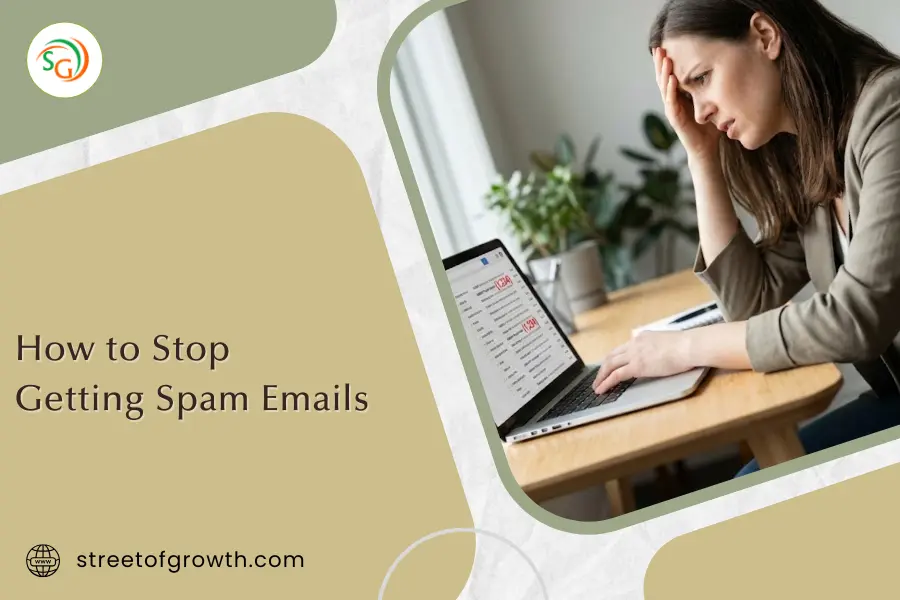
Remember when you used to get excited seeing new emails in your inbox? Now you probably dread opening it. Between the “URGENT: Your package is waiting!” scams, the newsletters you never signed up for, and the endless promotional emails, your inbox has turned into a digital dumping ground.
You’re not alone. And no, you’re not going crazy.
Right now, spam makes up nearly 47% of all global email traffic. That means almost half of the 376 billion emails sent every single day are junk. If you’re getting 50 emails a day, about 23 of them are probably spam. That’s not just annoying anymore. It’s exhausting.
But you don’t have to live like this. Today, there are solutions that actually work. Not just temporary Band-Aids, but strategies that can cut your spam down to almost nothing. And I’m going to show you exactly how to do it.
Why Your Inbox Is Suddenly Drowning in Spam
Before we fix the problem, let’s talk about why it’s happening. Because understanding where spam comes from helps you prevent it in the first place.
The 16 Billion Email Disaster You Probably Didn’t Hear About
In 2026, something massive happened that most people missed. Security researchers discovered a compilation of nearly 16 billion usernames, emails, and passwords floating around the internet. This wasn’t a single hack. It was a collection from hundreds of data breaches, all packaged together like some nightmare database.
Your email is probably in there. And so is mine.
This explains why you’re suddenly getting spam from websites you’ve never heard of. Spammers didn’t find your email through some mysterious dark magic. They bought it. Or scraped it from that massive leak. Or pulled it from one of the thousands of smaller data breaches that happen every single day.
The AI Spam Revolution Nobody Warned You About
Things get worse. Spammers are now using AI to write emails that sound eerily real. There’s been a 1,265% surge in phishing emails specifically because of AI-powered automation. These aren’t the broken English “Nigerian prince” emails anymore. They’re polished, personalized, and genuinely hard to spot.
The emails know your name. They reference real companies you use. They create fake urgency that makes your heart race (“Your account will be closed in 24 hours!”). And they’re getting better every single day.
How Spammers Actually Get Your Email
Let’s be honest about the most common ways your email ends up on spam lists:
Data Breaches – Companies get hacked. Your info gets sold. It’s that simple. Even if you’re careful, you can’t control how well other companies protect your data.
You Give It Away Without Realizing – Every time you sign up for a “free guide” or enter a giveaway, there’s a good chance your email is being shared with partners and advertisers. That checkbox you ignored? The one that said “I agree to receive promotional emails from partners”? Yeah, that one.
Public Listings – If your email is on your website, LinkedIn profile, or any public forum, bots are constantly scanning and grabbing it.
Unsubscribe Traps – Sometimes clicking “unsubscribe” in a sketchy email doesn’t stop emails. It confirms your address is active, which makes it more valuable to spammers.
Cookie Consent Chaos – When you click “Accept All” on those cookie pop-ups, some websites interpret that as permission to share your email with advertisers and data brokers.
The average person’s email address is exposed in data breaches multiple times. In 2021 alone, nearly 1 billion emails were exposed. That’s one in five internet users. By now? The numbers are even worse.
The Actual Cost of Spam (Beyond Annoyance)
Let’s talk numbers for a second.
Spam costs businesses about $20.5 billion per year in lost productivity. That’s time employees spend deleting junk instead of doing actual work. For you personally? If you spend just 5 minutes a day dealing with spam, that’s over 30 hours a year. That’s almost a full work week of your life, just deleting emails.
But the danger goes way beyond wasted time. It’s security.
Phishing emails account for 1 in every 412 emails you receive. These aren’t just annoying. They’re designed to steal your passwords, banking information, and identity. The average phishing-related data breach costs organizations $4.88 million. For individuals? Identity theft can take years to recover from.
And the scary part: 30% of people actually open phishing emails. Once opened, many don’t even realize they’ve fallen for a scam until it’s too late.
The Solution Most People Don’t Know About: Email Masking
Before I give you the step-by-step platform guides everyone else focuses on, let me share the single most effective strategy for stopping spam: email masking.
This is the one method that prevents spam rather than just managing it after it arrives. And it’s way simpler than it sounds.
What Is Email Masking?
Think of email masking like having a bouncer for your actual email address. Instead of giving websites your main email ([email protected]), you give them a masked email ([email protected]).
When someone emails the masked address, it forwards to your inbox. But the good part: if that masked email starts getting spam, you just delete it. Your main email stays clean, and the spam has nowhere to go.
It’s like having infinite burner phone numbers, but for email.
Why This Works So Well
Traditional spam fighting is reactive. You block senders after they spam you. You create filters after your inbox is flooded. Email masking is proactive. The spammers never get your actual address in the first place.
Let’s say you sign up for a sketchy-looking website to get a discount code. Instead of using your main email, you create a masked email specifically for that site. Six months later, that company has a data breach (or sells your data, or spams you to death). No problem. You delete that specific masked email. Your main address? Still pristine.
The Top Email Masking Services
A comparison of the best services in 2026:
| Service | Free Tier | Paid Price | Best For |
|---|---|---|---|
| DuckDuckGo | Unlimited aliases | Free forever | Most people (unlimited, free, simple) |
| SimpleLogin | 10 aliases | $30/year | Privacy enthusiasts (open source) |
| Firefox Relay | 5 aliases | $12/year | Budget-conscious (cheap premium) |
| Apple Hide My Email | Unlimited (with iCloud+) | $0.99/month | Apple users (direct integration) |
| NordPass | 200 aliases | Included with NordPass | Password manager users |
| Fastmail | Unlimited | $5/month | Power users (custom domains) |
My Recommendation: Start with DuckDuckGo’s Email Protection service. It gives you unlimited aliases for free, with no catches. You can integrate it with password managers like Bitwarden, making it incredibly easy to generate a unique email for every website you visit.
How to Set Up Email Masking (The Easy Way)
The simplest setup that takes less than 10 minutes:
Step 1: Sign up for DuckDuckGo Email Protection (it’s free and takes 2 minutes)
Step 2: Connect it to a password manager like Bitwarden (also free)
Step 3: Whenever you sign up for a new website, use the password manager to generate both a unique password AND a unique masked email automatically
Step 4: If any masked email starts getting spam, delete it with one click
Done. Your actual email is now protected.
When to Use Masked Emails
Use masked emails for:
- Online shopping (retailers love selling your data)
- Newsletter signups
- Free trials and one-time downloads
- Giveaways and contests
- Any website you don’t 100% trust
- Job applications on public job boards
- Social media and forum registrations
Keep your main email for:
- Banking and financial services
- Healthcare providers
- Government services
- Close personal contacts
- Your main work email
Platform-Specific Spam Fighting (Gmail, Outlook, Yahoo)
Okay, now let’s get into the traditional methods. Even with email masking, you’ll still need to clean up existing spam and fine-tune your filters.
Gmail: The Powerhouse Filter System
Gmail’s spam filter is actually pretty good, but it needs your help to get great.
Mark Spam Aggressively: Don’t just delete spam. Mark it. This trains Gmail’s algorithm. Every time you mark an email as spam, you’re teaching Gmail what junk looks like. Do this consistently for a week, and you’ll see a noticeable difference.
To mark spam: Open the email, click the three dots, select “Report spam.”
Create Custom Filters: This is where Gmail becomes really powerful. You can create rules that automatically delete or label emails based on keywords.
The process:
- Click the Settings gear icon → See all settings
- Go to “Filters and Blocked Addresses”
- Click “Create a new filter”
- In the filter form, enter spam keywords in “Subject” or “Has the words” field (like “limited offer,” “click here,” “urgent action required”)
- Choose what to do: Delete it, Skip inbox, or Mark as spam
- Click “Create filter”
Pro Tip: Create separate filters for different types of spam. One for promotional language, another for suspicious sender domains, and another for emails with certain attachments.
Block Senders: For persistent spammers, block them completely:
- Open an email from the sender
- Click the three dots
- Select “Block [sender name]”
Use the Unsubscribe Feature: Gmail shows an “Unsubscribe” link at the top of promotional emails. This is different from the unsubscribe link in the email itself (which might be fake). Gmail’s unsubscribe actually works.
Outlook: Microsoft’s Underrated Tools
Outlook has some features Gmail doesn’t, especially for business email users.
Adjust Junk Email Protection Level:
- Go to Home → Junk → Junk E-mail Options
- Set the protection level (I recommend “Low” or “Safe Lists Only”)
- “Safe Lists Only” means you’ll only receive email from people in your contacts (extreme but effective)
Create Safe and Blocked Sender Lists:
- Right-click a spam email
- Select Junk → Block Sender
- Or add trusted senders to Safe Senders: Junk → Never Block Sender
Set Up Rules:
- Click File → Manage Rules & Alerts
- Click New Rule
- Choose “Apply rule on messages I receive”
- Set conditions (from specific people, with specific words, etc.)
- Choose action (delete, move to folder, etc.)
Outlook’s Focused Inbox: This feature separates important emails from everything else. It’s not perfect, but it learns from your behavior. Train it by moving important emails to “Focused” and junk to “Other.”
Yahoo Mail: The Comeback Filter
Yahoo’s spam filtering has improved significantly over the years. What you can do to make it work better:
Enable Spam Protection:
- Click Settings (gear icon) → More Settings
- Go to Security and Privacy
- Enable “Block images in emails to protect your privacy”
- Turn on “Scan emails for links to harmful sites”
Create Filters:
- Settings → More Settings → Filters
- Click Add → Set up your filter rules
- You can filter by sender, subject, or keywords
Use the Block Feature:
- Open the spam email
- Click More → Block sender
- All future emails from that address go to spam
Yahoo’s Smart Folders: Create folders for specific types of email (newsletters, promotions, receipts) and set filters to automatically sort incoming mail. This keeps your main inbox cleaner.
Prevention Strategies That Actually Work
Beyond filters and blockers, strategies that stop spam before it starts:
1. Create Multiple Email Addresses (The Strategic Way)
Most email providers let you create multiple free accounts. Use them strategically:
Primary Email: Only for important accounts (banking, healthcare, work, close friends)
Shopping Email: For all online purchases and retail accounts
Newsletter Email: For content you actually want to read
Throwaway Email: For sketchy websites, one-time signups, and anything you don’t trust
This way, if one email gets compromised or flooded, it doesn’t affect your important communications.
2. Never Publish Your Main Email Publicly
If you need to share an email on your website or LinkedIn:
- Use a contact form instead
- Write it as “name AT domain DOT com” (bots can’t easily scrape this)
- Use a masked email created specifically for public display
- Create a separate “business inquiries” email that you check less frequently
3. The Gmail Plus Trick (Quick But Limited)
Gmail lets you add a plus sign (+) and any words to your email, and it still reaches you:
- [email protected]
- [email protected]
- [email protected]
All of these go to [email protected]. You can then create filters based on what comes after the plus sign.
The Problem: Spammers know this trick. They can easily remove the +part to get your main email. Use this for legitimate signups you want to track, not for privacy.
4. Check If Your Email Has Been Breached
Use Have I Been Pwned to see if your email appears in known data breaches. If it does, consider:
- Changing your password on affected accounts
- Creating new masked emails for those accounts going forward
- Enabling two-factor authentication everywhere
5. Adjust Your Privacy Settings Everywhere
Most email services have privacy dashboards where you can:
- Remove third-party app access
- Disable email tracking
- Stop automatic email forwarding you didn’t set up
- Review which apps can send you emails
For Gmail:
- Click your account icon → Manage your Google Account
- Go to Security
- Review connected apps and revoke access for anything suspicious
For Outlook:
- Click account icon → My Microsoft Account
- Privacy → Privacy dashboard
- Review and remove suspicious apps
For Apple Mail:
- System Preferences → Security and Privacy
- Adjust settings to limit who can access your email
6. Use Third-Party Spam Filters
If your email provider’s standard filter isn’t cutting it, consider third-party services:
- SpamTitan (excellent for businesses)
- Mailwasher (desktop app that screens email before downloading)
- Clean Email (bulk email cleaner with AI)
- SpamSieve (great for Mac users)
These add an extra layer of filtering between you and the spam.
What to Do If You’re Already Drowning
If your inbox is already flooded with thousands of spam emails, your recovery plan:
Week 1: Triage
- Don’t try to fix everything at once
- Mark 10-20 spam emails per day as spam
- Unsubscribe from legitimate emails you don’t want (but be careful with sketchy senders)
- Create one or two filters for your biggest spam sources
Week 2: Serious Cleanup
- Set aside 30 minutes to go through your entire inbox
- Archive everything older than 30 days (you can search later if needed)
- Block persistent spam senders
- Create a few more targeted filters
Week 3: Prevention Mode
- Set up email masking
- Create your multiple email system
- Start using masked emails for all new signups
- Review your email privacy settings
Week 4: Maintenance
- Check your spam folder once a week for false positives
- Adjust filters based on what’s getting through
- Delete unused masked emails that are attracting spam
- Pat yourself on the back because your inbox is finally manageable

The Hard Truth About Spam
What nobody wants to admit: you’ll never completely eliminate spam. As long as email exists, spammers will find ways to reach inboxes. It’s an arms race, and both sides keep evolving.
But you can reduce it by 90% or more with the strategies in this guide.
The thing is changing your mindset from reactive to proactive. Stop fighting spam after it arrives and start preventing it from reaching you in the first place.
Email masking alone can cut your spam in half within a month. Combine that with good filters, strategic email use, and regular maintenance, and suddenly your inbox becomes what it was supposed to be: a tool, not a source of daily stress.
Spam is a symptom of how widely your address has travelled, which digital privacy rights explains along with what you can demand back. For the messages you do want answered, following up on an unanswered email is the other half of inbox work.
Frequently Asked Questions
Can I completely stop all spam emails?
No, but you can reduce them by 80-95%. Even the best spam filters miss some emails, and new spam tactics emerge constantly. The goal is management, not total elimination.
Is it safe to click unsubscribe in spam emails?
For legitimate companies, yes. For sketchy emails from unknown senders, no. If you’re unsure, just mark it as spam and block the sender. Clicking unsubscribe in a scam email can confirm your email is active.
Do spam emails contain viruses?
Not the email itself, but attachments and links in spam emails often lead to malware. Never download attachments or click links from unknown senders. Even if it looks legitimate, verify the sender’s email address carefully.
Why do I suddenly get more spam after visiting certain websites?
Some websites sell your email to data brokers and marketing companies immediately after you sign up. This is why email masking is so effective. Use a unique masked email for each website, and you’ll know exactly who’s selling your data.
Will changing my email address stop spam?
Only temporarily. If you don’t change your online habits, your new email will eventually end up on spam lists too. Better to clean up your existing email using the strategies in this guide and protect it going forward with email masking.
How often should I check my spam folder?
Once a week is enough. Legitimate emails rarely end up in spam, but it happens. Just quickly scan for any emails that look important, mark them as “not spam,” and move on.
Are free email services worse for spam than paid ones?
Not necessarily. Gmail’s spam filter is actually one of the best, and it’s free. Paid services like ProtonMail or Fastmail offer more privacy and control, but they’re not inherently better at blocking spam.
What’s the difference between spam and phishing?
Spam is unsolicited bulk email (annoying but not always dangerous). Phishing is a specific type of spam designed to steal your personal information by pretending to be a legitimate company. Phishing is far more dangerous.
Can I use email masking for work emails?
Absolutely. In fact, it’s smart to use masked emails for any external signups, vendor communications, or situations where you’re unsure about the recipient’s security practices. Just keep your primary work email for internal communications and established business relationships.
Final Thoughts: Take Control of Your Inbox
Your inbox doesn’t have to be a source of daily frustration. With email masking, smart filtering, and better habits, you can reclaim your digital space.
Start with one change today. Set up a masked email service. Create one filter. Spend five minutes blocking obvious spam senders. Small actions compound over time.
The spam won’t disappear overnight. But in a few weeks, you’ll notice something: checking your email doesn’t fill you with dread anymore. That promotion you actually wanted to see? You didn’t miss it buried under 50 spam emails. That important message from your boss? It’s right there at the top.
Your inbox can be a tool again instead of a burden. It just takes the right strategy.
And now you have one.