
Failed to Save Game Error Code 804 BG3: 9 Proven Fixes That Actually Work
You’re deep into Baldur’s Gate 3. Maybe you just survived a brutal fight, made a big decision, or finally romanced Shadowheart. You hit quicksave and… nothing. Just a frustrating message: “Failed to Save Game – Error Code 804.”
Your heart sinks.
Don’t worry. This error is fixable, and you won’t lose your progress if you act quickly. This guide walks you through every working solution, from quick fixes to more involved troubleshooting.
What Causes Error Code 804 in Baldur’s Gate 3?
Before jumping into fixes, it helps to understand why this happens. Error 804 typically appears when:
- Steam Cloud and Larian Cloud conflict with each other. Both services trying to sync at once can cause the save system to fail.
- Your save files are corrupted. Unexpected crashes, power outages, or force-closing the game can damage save data.
- You’re in a scripted scene. Certain moments in Act 2 and Act 3 intentionally block saves during specific animations or cutscenes.
- Your storage drive is full or nearly full. BG3 save files need space to write properly.
- File permission issues. Your system might be blocking the game from writing to the save folder.
- Mods are conflicting with the save system. Outdated or incompatible mods can break core game functions.
Now that you know what causes the problem, let’s fix it.
Quick Fixes to Try First
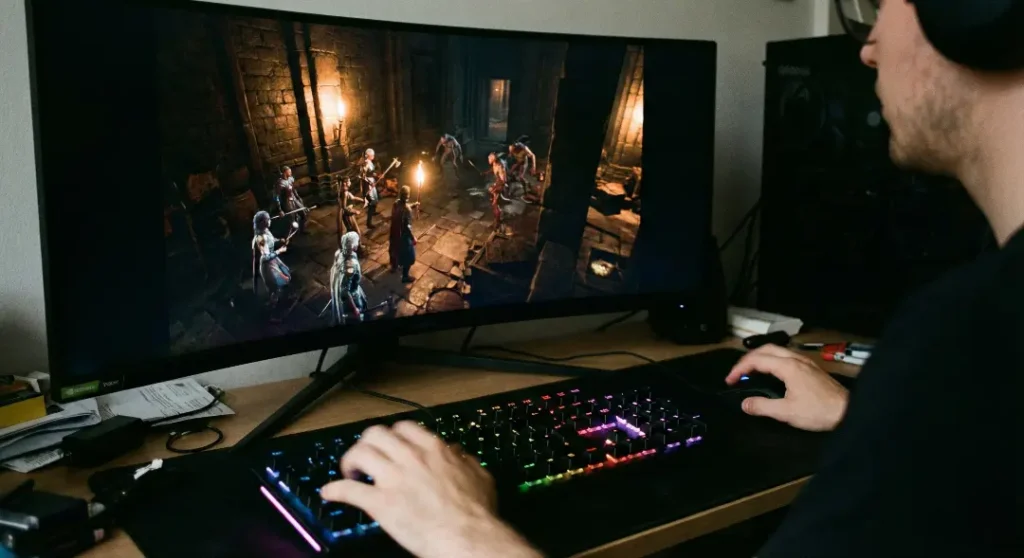
Sometimes the solution is simpler than you think. Start here before moving to more involved troubleshooting.
1. Wait a Few Seconds and Try Again
If you’re in a scripted moment (like certain scenes at Moonrise Towers in Act 2 or the Elfsong Tavern epilogue in Act 3) the game temporarily blocks saves. This is intentional. Wait for the scene to fully complete, then try saving again.
2. Restart the Game
Close Baldur’s Gate 3 completely. Exit the Larian launcher too. Wait about 30 seconds, then relaunch. This clears temporary memory issues that can cause save failures.
3. Move Away from NPCs
Some players report that standing too close to certain NPCs or during specific animations triggers error 804. Walk your character to an empty area and try saving again.
Disable Cloud Sync (The Most Reliable Fix)
This fix works for most players. When Steam Cloud and Larian’s cloud save both run at the same time, they often clash. Turning them off forces the game to save locally, which is more reliable.
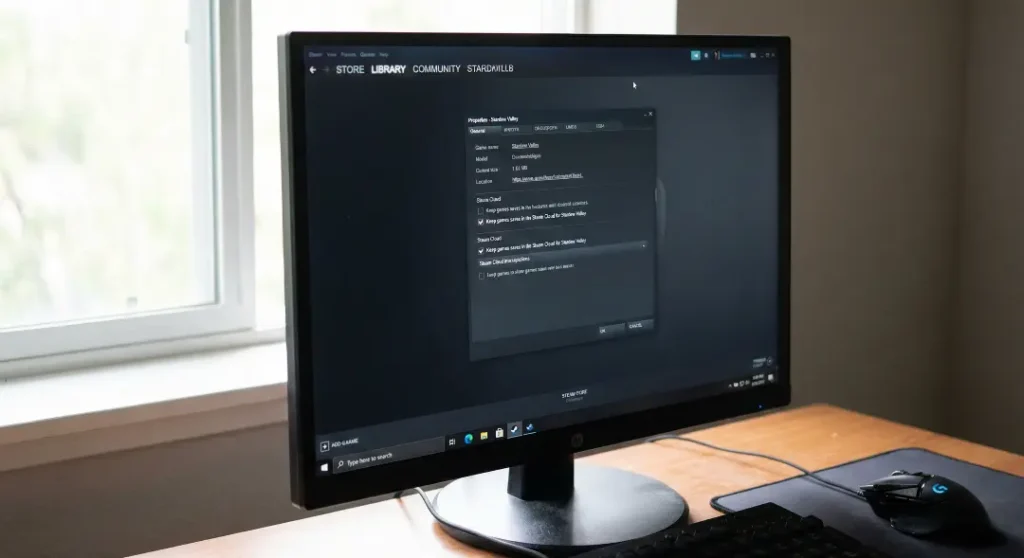
Step 1: Disable Steam Cloud for BG3
- Close Baldur’s Gate 3 if it’s running.
- Open Steam and go to your Library.
- Right-click on Baldur’s Gate 3 and select Properties.
- In the General tab, find the option that says “Keep game saves in the Steam Cloud for Baldur’s Gate 3.”
- Turn it OFF.
Step 2: Disable Cross-Save in the Game
- Launch Baldur’s Gate 3.
- Open the Options menu.
- Go to the Gameplay tab.
- Under Save Options, toggle Cross-save to OFF.
- Restart the game.
After doing this, try saving. For most players, this completely solves error 804.
The Barter Trick (A Strange but Effective Fix)
This sounds weird, but it works. Some versions of error 804 are tied to a bug in the trading system. Toggling between trade and barter modes can reset something in the game’s memory that allows saves to work again.
Here’s how to do it:
- Find a trader (any merchant works).
- Open the trade menu.
- Switch to Barter mode.
- Give them one item (anything, even a single gold coin).
- Close the barter window.
- Go to a different trader.
- Open trade with them (it should default to barter this time).
- Give them one item again.
- Close the window.
Now try saving your game.
Some players need to repeat this 2-4 times before it sticks. If you’re in Act 1, the Myconid Colony works well because it has two traders close together.
Clear the Level Cache
Corrupted cache files can prevent saves from working. Clearing them forces the game to rebuild fresh data.
On Windows:
- Press Windows + R to open the Run dialog.
- Paste this path:
%LocalAppData%\Larian Studios\Baldur's Gate 3\LevelCache - Press Enter.
- Delete all folders inside the LevelCache folder.
- Launch the game and test saving.
This won’t delete your actual save files. It only removes temporary data the game uses during play.
Verify Game Files
Corrupted or missing game files can cause all sorts of problems, including error 804.
On Steam:
- Open Steam and go to your Library.
- Right-click Baldur’s Gate 3 and select Properties.
- Go to the Local Files tab.
- Click Verify Integrity of Game Files.
- Wait for the process to complete (this can take a few minutes).
- Restart the game.
On GOG:
- Open GOG Galaxy.
- Select Baldur’s Gate 3 in your library.
- Click the settings icon next to the Play button.
- Select Manage installation > Verify / Repair.
Check Your Storage Space
BG3 save files can get large, especially if you’ve been playing for dozens of hours. If your drive is almost full, the game can’t write new saves.
Open File Explorer and check how much free space you have on the drive where BG3 is installed. You should have at least 10-15 GB free to be safe.
If space is tight:
- Delete old save files you no longer need.
- Move other files or programs to a different drive.
- Uninstall games you’re not playing.
Fix File Permissions
Sometimes Windows blocks programs from writing to certain folders. If BG3 can’t access its save directory, you’ll get error 804.
To fix this:
- Navigate to:
C:\Users\[YourUsername]\AppData\Local\Larian Studios\Baldur's Gate 3 - Right-click the Baldur’s Gate 3 folder and select Properties.
- Go to the Security tab.
- Make sure your user account has Full Control permission.
- If not, click Edit, select your username, and check the Full Control box.
- Click Apply and OK.
You can also try running the game as administrator:
- Right-click the BG3 shortcut or exe file.
- Select Run as administrator.
- Try saving again.
Disable Mods Temporarily
If you use mods, one of them might be causing the problem. Mods that worked before a patch can break after updates.
To test this:
- Disable all mods (or remove them from the mods folder).
- Launch the vanilla game.
- Try to save.
If saving works without mods, enable them one at a time to find the culprit. Always use mods compatible with your current game version.
Delete Corrupted Save Files (Last Resort)
Warning: This step may delete some of your progress. Only do this if nothing else works.
If a specific save file is corrupted, the game might struggle to create new saves while that file exists.
To find your save files:
C:\Users\[YourUsername]\AppData\Local\Larian Studios\Baldur's Gate 3\PlayerProfiles\Public\Savegames
Before deleting anything:
- Copy the entire Savegames folder to your desktop as a backup.
- Look for any save files with strange names, zero file sizes, or recent timestamps from when the error started.
- Delete suspicious files.
- Launch the game and load from your most recent working save.
How to Prevent Error 804 in the Future
Once you’ve fixed the problem, take these steps to avoid it happening again:
- Save frequently using manual saves, not just quicksaves.
- Keep multiple save files in rotation so you’re never dependent on one.
- Backup your save folder to an external drive or cloud storage weekly.
- Keep BG3 updated to the latest patch. Larian fixes bugs regularly.
- Don’t force-close the game while it’s saving. Let it finish.
- Maintain at least 15 GB of free space on your game drive.
- Update mods after every patch or disable them until mod authors confirm compatibility.
When to Contact Larian Support
If you’ve tried everything and still can’t save, it’s time to reach out for help.
Visit the official Larian Studios support page and submit a ticket. Include:
- Your operating system and specs.
- Which platform you use (Steam, GOG, etc.).
- When the error started.
- What you’ve already tried.
- Screenshots of the error message.
The BG3 community on Reddit and the official Larian forums is also helpful. Many players share fixes for specific situations there.

FAQs
Does error 804 delete my saves?
No, the error itself doesn’t delete anything. However, if you can’t save for a long time and then crash, you’ll lose progress since your last successful save.
Can this error happen on PS5 or Xbox?
Yes, but it’s more common on PC. Console players should try restarting the game, checking storage space, and disabling cross-save.
Is error 804 the same as “currently syncing”?
Not exactly, but they’re related. Both involve cloud sync issues. The fixes overlap, and disabling cloud saves usually resolves both problems.
Will Larian patch this permanently?
Larian has released multiple patches addressing save issues. Keeping your game updated is the best way to avoid known bugs.
Can I continue playing while error 804 is happening?
You can, but it’s risky. If the game crashes or you quit, you’ll lose all progress since your last working save. Fix the issue before continuing.
Final Thoughts
Error code 804 is frustrating, but it’s not the end of your adventure. Most players fix it by disabling cloud sync. If that doesn’t work, the barter trick, clearing the cache, or verifying files usually does the job.
The key is acting fast. Don’t keep playing for hours hoping the problem fixes itself. Stop, troubleshoot, and confirm saves are working before you continue.
Your playthrough is worth protecting. Now get back in there and finish what you started.