
Renter Friendly Smart Lock Installation – No-Drill Guide for Apartments
Installing a smart lock in your rental home shouldn’t feel like defusing a bomb. Yet, every year, thousands of renters stare at their apartment door, wondering if they’ll lose their security deposit over two tiny screw holes.
The good news: you can upgrade to keyless entry without drilling, damaging walls, or making your landlord angry. This guide walks you through every single step, from choosing the right lock to removing it when you move out.
Whether you’ve never installed anything in your life or you’re a DIY expert, this guide has everything you need to install a renter friendly smart lock with complete confidence.
Why Renters Need Smart Locks (And Why Landlords Usually Say No)
You know that panic when you pat your pockets and realize your keys are inside? Or when your roommate texts “I forgot my keys again” for the third time this month?
Smart locks solve these everyday frustrations. But there’s a bigger reason renters love them: security. You can lock your door from anywhere, give temporary access to guests, and know exactly who enters your home and when.
So why do landlords often say no to regular smart locks?
The landlord’s perspective:
- They worry about permanent changes to their property
- They need emergency access with their master key
- They fear you’ll lock them out of their own building
- They don’t want to deal with repair costs after you move
The good news? Renter friendly smart locks solve all these problems. They install over your existing lock, don’t require drilling, and your landlord keeps their key access. Win-win.
What Makes a Smart Lock “Renter Friendly”?
Not all smart locks work for renters. What separates the renter friendly options from the ones that’ll get you in trouble:
Must-Have Features:
- No drilling required – Installs with existing screw holes or adhesive
- Retrofit design – Works with your current deadbolt and lock
- Outside stays unchanged – Your landlord’s key still works
- Reversible installation – Removes completely when you move out
- Takes 15 minutes or less – No professional locksmith needed
Types of Renter Friendly Smart Locks:
| Lock Type | How It Works | Best For | Difficulty |
|---|---|---|---|
| Retrofit Lock (August, Wyze) | Replaces interior thumbturn only | Most renters, easy removal | Easiest |
| Adhesive Mount (SwitchBot) | Sticks over existing lock | Zero tools needed | Super Easy |
| Interior Replacement (Level Bolt) | Hides inside deadbolt | Invisible installation | Moderate |
Popular Renter Friendly Brands:
- August Wi-Fi Smart Lock ($229) – Most popular, works with Alexa/Google/HomeKit
- SwitchBot Lock Pro ($119) – Budget option, adhesive mount
- Wyze Lock Bolt ($79) – Great value with fingerprint scanner
- Nuki Smart Lock Pro ($299) – Premium European option
- Level Bolt ($349) – Invisible from outside
Before You Buy: The Essential Compatibility Checklist
Stop right there. Don’t buy anything yet.
The biggest mistake renters make is ordering a smart lock without checking if it actually fits their door. Save yourself the hassle of returns and frustration.
Check These 5 Things First:
1. Deadbolt Type

Most renter friendly locks need a single cylinder deadbolt (the kind that turns with a key outside and a thumbturn inside).
❌ Won’t work with:
- Double cylinder deadbolts (key on both sides)
- Mortise locks (rectangular box style)
- Multi-point locking systems
- Rim locks (surface mounted)
✅ Works with:
- Standard single cylinder deadbolts
- Most apartments and rental homes built after 1970
How to check: Look at the inside of your door. Do you see a simple thumbturn (the knob you twist)? You’re good to go.
2. Door Thickness
Measure your door from edge to edge. Most smart locks work with doors between 1⅜ inches and 2 inches thick.
How to measure: Use a tape measure at the edge of your door (not including any trim or molding).
3. Backset Distance
This is the distance from the edge of your door to the center of your deadbolt hole.
Standard sizes are:
- 2⅜ inches (most common in apartments)
- 2¾ inches (common in single-family homes)
How to measure: Close your door. Measure from the door edge to the center of your deadbolt cylinder.
4. Existing Screw Holes
Take a photo of your current lock’s screw pattern. You’ll use these same holes (no new drilling!).
Count the screws:
- Interior mounting plate: Usually 2 screws
- Deadbolt mounting: Usually 2 screws
5. WiFi Signal Strength
Stand by your front door and check your WiFi signal. If you’re getting less than 2 bars, you might need:
- A WiFi extender near your door
- A lock with Bluetooth instead of WiFi
- A smart home hub closer to the entrance
Quick Compatibility Test:
- Can you turn your thumbturn smoothly with one finger? (Yes = Good)
- Does your lock wiggle or feel loose? (Yes = Fix before installing)
- Does your door stick or drag when opening? (Yes = Needs adjustment first)
- Is there paint or gunk around the deadbolt? (Yes = Clean it first)
How to Talk to Your Landlord About Installing a Smart Lock
The uncomfortable truth: you should ask for permission. Even if your lease doesn’t specifically mention smart locks, most leases have a “no alterations” clause.
But when you explain it right, most landlords say yes.
What Landlords Worry About:
- “Will this damage my property?”
- “Can I still get in for emergencies?”
- “What happens when they move out?”
Your Winning Pitch:
Use this exact script (seriously, it works):
Subject: Quick Question About Adding Extra Security
Hi [Landlord’s Name],
I wanted to run something by you. I’d like to add a smart lock to my front door for extra security and convenience.
Before you worry, what makes this different from a regular lock change:
No Damage to Your Property:
- It installs over the existing lock (no drilling new holes)
- Uses the same screws already in the door
- The outside of the door stays completely unchanged
- Takes less than 15 minutes to install and remove
You Keep Full Access:
- Your master key still works exactly like before
- The outside lock remains untouched
- I can add your phone to the system if you want remote access
- I’ll remove it completely when I move out (no trace left behind)
Added Benefits for You:
- Better security for your property
- Activity log shows when doors are locked/unlocked
- No more locksmith calls if I get locked out
- Property value increases with smart home features
I’m happy to show you the product details and answer any questions. Would you like me to send over the installation guide?
Thanks for considering it!
[Your Name]
Pro Tips:
- Attach a product link showing it’s designed for renters
- Offer to show them in person before installing
- Get their approval in writing (text or email counts)
- Some landlords love tech and will want it in all their units
What if They Say No?
If your landlord refuses, you have options:
- Offer to put down an extra small deposit (refundable)
- Ask if they’ll install it (some will if you buy it)
- Show them reviews from other landlords who approved it
- Wait until lease renewal and bring it up again
Legal Note: In some cities (like New York), you may have the right to install additional security. Check your local tenant laws or contact your local housing authority.
What You’ll Need: Tools and Supplies
Good news: you probably have everything already.
Essential Tools:
- Phillips head screwdriver – That’s it. Seriously.
- Your smartphone – For the setup app
- Fresh batteries – Usually 4 AA batteries (check your lock’s specs)
Helpful But Optional:
- Painter’s tape – Keeps the exterior lock from falling
- Small flashlight – Helps see inside the lock mechanism
- Alcohol wipes – Cleans surfaces before adhesive (if using SwitchBot)
- Sandwich bag – Stores your original hardware safely
Before You Start:
- Charge your phone fully (you’ll need it for setup)
- Clear 30 minutes of uninterrupted time
- Make sure someone else can get you back in (just in case)
- Take “before” photos of your lock (helps during removal)
Step-by-Step Installation Guide (Works for Most Retrofit Locks)
Alright, let’s do this. I’m walking you through the installation like I’m right there with you.
This guide works for retrofit locks like August, Wyze, and similar brands. If you bought an adhesive mount (like SwitchBot), skip to the special section after this.
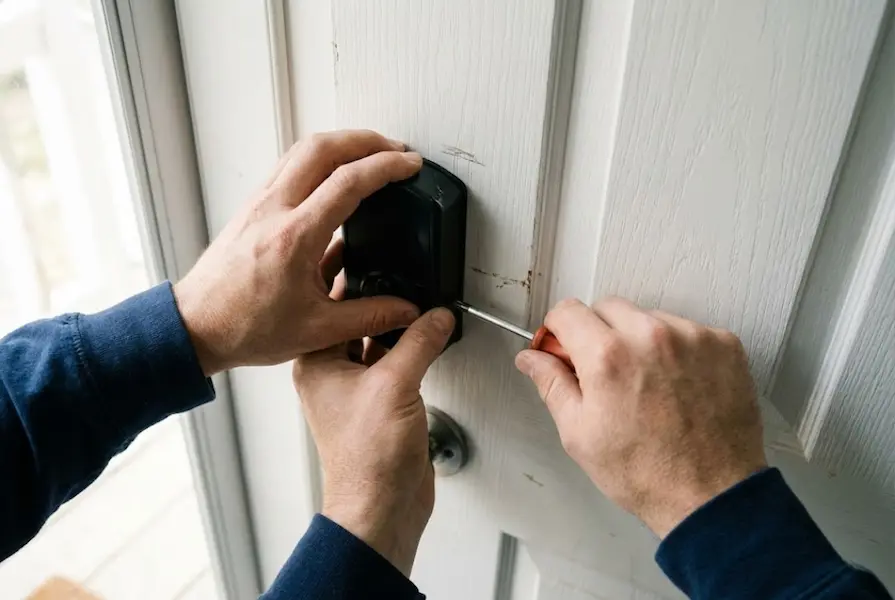
Step 1: Secure the Exterior Lock
This is the step everyone skips and then regrets.
What to do:
- Take a piece of painter’s tape
- Wrap it around your exterior lock (the keyhole side)
- Stick it firmly to your door
- This prevents the outside lock from falling when you remove screws
Why this matters: The interior and exterior parts are connected. When you unscrew the inside, the outside can fall off and hit the ground. Painter’s tape saves you from that panic moment.
Step 2: Remove Your Existing Interior Lock
What you’re removing:
- The thumbturn (the twisty knob)
- The mounting plate behind it
- That’s all. Don’t touch anything else.
How to remove it:
- Locate the two screws on your interior mounting plate
- Unscrew them slowly (not all the way at first)
- Loosen them evenly (a little on each side)
- Once loose, remove them completely
- Carefully pull off the interior assembly
Save everything: Put all pieces in a labeled sandwich bag. You’ll need these when you move out.
Take a photo: Snap a quick picture of how everything looked before removal.
Step 3: Check Your Deadbolt Mechanism
Now you can see inside your lock. This is what you should see:
The tailpiece: A small metal piece sticking out of the deadbolt. It might be square, rectangular, or have a special shape.
What to check:
- Does it turn smoothly?
- Is there any rust or damage?
- Does it stick or grind?
If it feels sticky: Spray a tiny bit of dry lubricant (like WD-40 Specialist Dry Lube). Never use oil-based lubricants on locks.
Step 4: Prepare Your Smart Lock
Open your new smart lock box. Inside, you’ll find:
- The main lock body
- Several adapter pieces (usually 3-5 different sizes)
- Mounting plate
- Screws (probably won’t need these)
- Batteries
- Instruction manual
Important: Don’t throw away the adapters you don’t use. Keep them in the box in case you need to swap later.
Insert batteries: Pop in the batteries now (usually in the back of the lock body). The lock will probably beep or flash to show it’s powered on.
Step 5: Choose the Right Adapter
This is where people get confused, but it’s actually simple.
The adapter connects your smart lock to your existing deadbolt. Think of it like choosing the right key for a keyhole.
How to choose:
- Look at your tailpiece (the metal part sticking out)
- Compare it to the adapters in your box
- Find the adapter that matches the shape
- Test fit it (it should slide on snugly)
Common adapter types:
- Square – Most common in apartments
- Rectangle – Often in older buildings
- Custom shape – Brand-specific designs
Pro tip: If you’re between two adapter sizes, start with the larger one. You can always switch to smaller.
Step 6: Attach the Adapter to Your Lock
For most locks:
- Slide the adapter into the slot in your smart lock
- You’ll hear or feel a click
- Try wiggling it (it shouldn’t move)
- If it’s loose, try the next size
Test before mounting: Turn the lock body. The tailpiece should rotate smoothly.
Step 7: Mount the Smart Lock
Everything comes together now.
Positioning:
- Hold the lock body against the door
- Align it with your existing screw holes
- The lock should sit flat against the door
- The adapter should slide over the tailpiece
Getting it perfect:
- Make sure the lock is level (eyeball it or use a phone level app)
- The bottom of the lock should clear any door molding
- You should be able to see status lights clearly
Screw it in:
- Insert the screws into the same holes
- Hand-tighten first (don’t use the screwdriver yet)
- Make sure everything is aligned
- Then use the screwdriver to tighten firmly
- Don’t overtighten (it can crack the plastic housing)
How tight is tight enough? The lock should feel solid but not forced. If you’re straining to turn the screwdriver, you’ve gone too far.
Step 8: Remove the Painter’s Tape
Go to the outside of your door and carefully peel off the painter’s tape. Your exterior lock should be secure and unchanged.
Quick check:
- Insert your key and turn it
- Does it work smoothly?
- Does it feel the same as before?
If anything feels different, your interior lock might be overtightened.
Step 9: Calibrate Your Smart Lock
This is the most important step for making your lock work perfectly.
What calibration does: It teaches your smart lock where “locked” and “unlocked” positions are on your specific door.
How to calibrate:
- Download the lock’s app (App Store or Google Play)
- Create an account or sign in
- Follow the app’s “Add New Device” prompts
- When it says “Calibrate,” pay attention
During calibration:
- The lock will turn several times automatically
- It’s learning how far to turn to lock and open
- This takes 30-60 seconds
- Don’t touch anything while it’s moving
- Close your door for accurate calibration
Common calibration issues:
Lock won’t complete calibration:
- Check battery installation (correct polarity?)
- Make sure your deadbolt turns smoothly
- Verify your door is fully closed
- Try moving closer to your phone (Bluetooth range)
Lock turns too far or not far enough:
- Run calibration again (it usually works the second time)
- Check if your adapter is secure
- Make sure the tailpiece isn’t damaged
Lock makes grinding noises:
- Something is misaligned
- Remove and reinstall the lock body
- Check if your deadbolt is sticky (add dry lube)
Step 10: Test Everything Multiple Times
Don’t trust it until you’ve tested it at least five times.
What to test:
- Lock and open with the app
- Use your physical key (still works, right?)
- Check auto-lock feature (if enabled)
- Try it from inside your home
- Try it from outside (the moment of truth!)
Test checklist:
- [ ] App controls work
- [ ] Physical key works
- [ ] Lock/open sounds normal
- [ ] No grinding or struggling
- [ ] Status shows correctly in app
- [ ] Battery level appears in app
Test from outside: Leave your home, walk to the end of the hallway or down the street, then open your door with the app. This confirms range and connectivity.
Special Installation Guide for Adhesive Mount Locks (SwitchBot)
If you bought a SwitchBot or similar adhesive-mount lock, your installation is even easier.
What makes it different: No screws at all. It sticks directly over your existing thumbturn.
Installation steps:
Step 1: Clean the Surface
- Use an alcohol wipe to clean around your deadbolt
- Get rid of all dust, oil, and grime
- Let it dry completely (wait 5 minutes)
- Don’t touch the cleaned area with your fingers
Step 2: Position the Mounting Plate
- Peel the backing off the adhesive plate
- Center it over your thumbturn
- Press firmly for 60 seconds (set a timer)
- Don’t let go early (adhesive needs pressure to bond)
Step 3: Attach the Lock Body
- Slide the lock onto the mounting plate
- You’ll hear it click into place
- Adjust the position so it grips your thumbturn
- Test manual operation before proceeding
Step 4: Calibrate and Test
- Open the app and add your device
- Run the calibration process
- The lock will learn your door’s positions
- Test repeatedly before trusting it
Pro tips for adhesive locks:
- Wait 24 hours before relying on it completely (adhesive needs time to cure)
- Don’t remove and reposition (adhesive loses strength)
- Keep extra adhesive plates on hand
- Clean the surface every few months to prevent buildup
Connecting Your Smart Lock to Other Devices
Your smart lock doesn’t have to work alone. Connect it to these systems for next-level convenience.
Voice Assistants:
Amazon Alexa:
- Open Alexa app → Skills
- Search for your lock brand
- Enable the skill
- Link your lock account
- Say “Alexa, lock the front door”
Google Assistant:
- Open Google Home app
- Add device → Works with Google
- Search and select your lock
- Sign in to link accounts
- Say “Hey Google, is the front door locked?”
Apple HomeKit:
- Open Home app on iPhone
- Tap + → Add Accessory
- Scan the HomeKit code (in the box or manual)
- Follow setup prompts
- Use Siri: “Hey Siri, is my door locked?”
Smart Home Hubs:
Most smart locks work with:
- SmartThings (Samsung)
- Home Assistant
- Hubitat
- Z-Wave hubs (check compatibility)
Automation Ideas:
Leaving Home:
- “When I leave, lock the door and turn off lights”
- “If door opens after 10pm, turn on entry light”
Arriving Home:
- “When door opens, disable alarm and adjust thermostat”
- “Open door when I pull into driveway” (requires geofencing)
Security:
- “If door opens between 2am-5am, send me an alert”
- “Take a photo with doorbell camera when door opens”
Troubleshooting Common Problems
Things go wrong. How to fix them fast.
Problem: Lock Won’t Connect to Phone
Symptoms: App can’t find the lock, connection keeps failing, or setup won’t complete.
Solutions:
1. Check Bluetooth/WiFi
- Make sure Bluetooth is ON (even for WiFi locks)
- Turn WiFi OFF and back ON
- Forget network and reconnect
2. Distance Matters
- Stand within 3 feet of the lock
- Remove phone case (it blocks signals)
- Close other Bluetooth apps
3. Restart Everything
- Remove batteries from lock (wait 30 seconds)
- Restart your phone completely
- Try setup again from scratch
4. Update Everything
- Update the lock app in app store
- Check for firmware updates in app
- Update your phone’s operating system
Still not working?
- Reset the lock to factory settings
- Try a different phone (borrow one from a friend)
- Contact manufacturer support
Problem: Lock Stops Working After a Few Days
Symptoms: Worked great at first, now it’s unresponsive or glitchy.
Common causes:
1. Battery Drain
- Check battery level in app
- Replace with fresh batteries (buy quality brands)
- Some locks drain faster with WiFi enabled
2. Lost Calibration
- Run calibration again
- Temperature changes can affect alignment
- Recalibrate after extreme weather
3. Firmware Issues
- Check for updates in the app
- Let updates complete fully
- Don’t interrupt update process
4. Network Problems
- Check your WiFi signal strength at door
- Restart your router
- Move router or add extender
Problem: Lock Jams or Makes Grinding Noises
Symptoms: Lock struggles to turn, makes strange noises, or gets stuck.
This is usually mechanical:
1. Misalignment
- Your door has shifted
- The deadbolt doesn’t line up with strike plate
- Seasonal changes cause wood to expand/contract
Fix it:
- Push or pull door slightly while locking
- Check if strike plate needs adjustment
- Use a file to widen the strike plate hole slightly
2. Sticky Deadbolt
- Dirt, dust, or debris in mechanism
- Old lubrication has dried out
- Tailpiece is damaged
Fix it:
- Remove smart lock temporarily
- Spray dry lubricant (not WD-40) into deadbolt
- Work the mechanism manually to distribute lubricant
- Reinstall and recalibrate
3. Adapter Issues
- Wrong adapter size
- Adapter not fully seated
- Adapter has cracked or loosened
Fix it:
- Remove lock and check adapter
- Try different adapter size
- Make sure it clicks securely into place
Problem: Physical Key No Longer Works Smoothly
Symptoms: Key is harder to turn, doesn’t want to insert fully, or feels different.
Why this happens: The smart lock is putting extra resistance on your deadbolt mechanism.
Solutions:
1. Adjust Lock Tightness
- Loosen mounting screws by 1/4 turn
- Test key operation
- Retighten if needed
2. Lubricate Everything
- Insert key halfway
- Spray dry lubricant
- Work key in and out 10 times
- Wipe excess lubricant
3. Check Alignment
- Smart lock might be mounted at angle
- Remove and reinstall level
- Use phone level app for accuracy
Problem: App Shows Wrong Lock Status
Symptoms: App says “locked” but door is open (or vice versa).
This is a sensor issue:
1. Recalibrate
- This fixes 90% of status issues
- Open app and find calibration option
- Follow prompts carefully
2. Check Door Sensor
- Some locks have magnetic door sensor
- Make sure magnet is aligned
- Clean sensor area (dust interferes)
3. Update Firmware
- Older firmware has bugs
- Always run latest version
- Updates improve accuracy
Problem: Battery Dies Too Quickly
Symptoms: Replacing batteries weekly or monthly instead of lasting 6-12 months.
Common causes:
1. Cheap Batteries
- Use quality alkaline or lithium
- Never use rechargeable batteries
- Store spare batteries nearby
2. High Usage
- Every lock/open cycle drains battery
- Automatic features use more power
- Multiple failed connection attempts drain battery
3. Feature Overload
- WiFi uses more than Bluetooth
- Turn off features you don’t use
- Reduce auto-lock frequency
4. Temperature Extremes
- Cold weather kills batteries faster
- Direct sunlight heats up lock
- Consider battery type for climate
Problem: Can’t Remove Lock When Moving Out
Symptoms: Screws are stripped, adhesive won’t come off, or you lost original hardware.
For screw-in locks:
- Spray WD-40 on stuck screws
- Use rubber band for stripped screws (place between screw and screwdriver)
- Tap screwdriver gently with hammer while turning
For adhesive locks:
- Use dental floss to cut through adhesive
- Apply isopropyl alcohol to loosen adhesive
- Use plastic scraper (never metal, it scratches)
- Heat with hairdryer to soften adhesive
Lost original hardware?
- Take smart lock to hardware store
- Match screw size and length
- Buy basic thumbturn assembly online
- Landlord might not notice minor differences
Setting Up Smart Features After Installation
Your lock is installed. Now make it actually smart.
Set Up User Access
Who needs access?
- Roommates (permanent)
- Partner/spouse (permanent)
- Dog walker (recurring schedule)
- Cleaners (temporary)
- Guests (one-time)
How to add users:
In most apps:
- Go to Settings or User Management
- Tap “Add User” or “Share Access”
- Enter their email or phone number
- Choose access type (permanent or temporary)
- Set schedule (if needed)
Access types explained:
| Access Type | Best For | Can They… |
|---|---|---|
| Owner | You only | Add/remove users, change settings |
| Admin | Co-renter, spouse | Add guests, view history |
| User | Roommate | Lock/open only |
| Guest | Temporary visitors | Lock/open during specific dates |
| Scheduled | Dog walker | Access only on certain days/times |
Security tips:
- Don’t share owner access
- Review user list monthly
- Remove users who move out immediately
- Use temporary access when possible
Configure Auto-Lock
Auto-lock automatically locks your door after a set time. Changes everything for forgetful people.
Recommended settings:
- Delay time: 30 seconds to 3 minutes
- Too fast: Annoying if you’re carrying groceries
- Too slow: Reduces security benefits
How to set it up:
- Open your lock app
- Find “Auto-Lock” or “Automatic Lock” in settings
- Toggle ON
- Choose delay time
- Test it (leave door open and wait)
When to disable auto-lock:
- When moving furniture
- During parties (lots of people coming in/out)
- When you’re working outside your door
Set Up Auto-Open
Auto-open makes your door open when your phone gets close. Sounds great, works… sometimes.
The reality of auto-open:
- When it works: You walk up, door opens, you feel like a genius
- When it doesn’t: You stand outside looking at your phone like an idiot
Why it’s unreliable:
- GPS and Bluetooth geofencing aren’t perfect
- Your phone needs to be awake
- Battery saver mode disables it
- Works poorly with multiple people
My recommendation: Use it as a backup, not your primary method. Keep using the app button for reliability.
Setup:
- Enable location services for the lock app
- Turn on auto-open in settings
- Set the trigger distance (20-50 feet usually)
- Do test walks (approach from different directions)
- Adjust sensitivity if needed
Enable Notifications
Know what’s happening at your door in the moment.
Useful notifications:
- “Door opened” – Someone came home
- “Door locked” – Someone left
- “Door left open” – You forgot to lock
- “Low battery” – Time to replace batteries
- “Forced entry” – Someone is trying to break in
How to manage notifications:
- Open lock app settings
- Find “Notifications” or “Alerts”
- Toggle which ones you want
- Choose notification method (push, email, SMS)
- Set quiet hours if needed
Don’t overdo it: Too many notifications and you’ll start ignoring them all.
Create Activity Logs
Most apps keep a record of every lock/open event.
What you can see:
- Timestamp of each action
- Which user triggered it
- Method used (app, key, voice, auto)
- Battery level at that time
Why this matters:
- Confirm your dog walker actually showed up
- Know when your roommate came home
- Prove you locked the door before vacation
- Track unusual activity
Privacy note: If you added other users, they might see activity logs too. Check your app’s privacy settings.
Connect to Home Security System
Many locks integrate with security systems.
Popular integrations:
- Ring Alarm
- SimpliSafe
- ADT
- Abode
What integration enables:
- Open door when alarm is disarmed
- Arm alarm when door locks
- Get alert if door opens while alarm is armed
- Auto-lock when alarm arms
How to connect:
- Check if your lock and security system are compatible
- Open security system app
- Find “Add Device” or “Integrations”
- Select your smart lock brand
- Sign in to link accounts
When You Move Out: Removal Process
Moving out? How to remove your lock and restore the original hardware.
Step 1: Take Final Photos and Videos
Before removing anything:
- Photograph the lock installed
- Video of it working (proof it works)
- Save activity logs if needed
- Backup all settings in app
Why? If your landlord claims you damaged something, you have proof of the lock’s condition.
Step 2: Delete All User Access
In the app:
- Remove all guest users
- Delete all temporary access codes
- Remove roommates and family
- Disconnect from other smart devices
- Unlink from voice assistants
Step 3: Factory Reset the Lock
Why reset?
- Removes your personal data
- Disconnects from your account
- Makes it resellable (you can sell it)
- Protects your privacy
How to reset (varies by brand):
- Usually involves holding a button for 10-15 seconds
- Check your user manual for exact steps
- The lock will beep or flash to confirm reset
Step 4: Remove the Smart Lock
For screw-in locks:
- Unscrew the mounting screws
- Pull lock straight off
- Don’t force it (check for hidden clips)
- Set aside carefully
For adhesive locks:
- Use dental floss to cut through adhesive
- Work slowly to avoid tearing paint
- Apply rubbing alcohol if stuck
- Use plastic scraper for remaining adhesive
Step 5: Reinstall Original Hardware
Remember that sandwich bag with your original parts?
Reinstallation:
- Slide the adapter onto tailpiece
- Position the mounting plate
- Insert screws through plate
- Tighten evenly (not too tight)
- Test with key
Lost your original hardware?
- Buy a universal interior trim kit at hardware store
- Match the finish (brass, nickel, bronze)
- Cost: $10-$25
Step 6: Clean Up
Remove all traces:
- Clean screw holes (if different from original)
- Fill tiny holes with spackling paste (if needed)
- Touch up paint (if scratched)
- Wipe down entire lock area
Step 7: Test Everything
Before your final walkthrough:
- Lock and open with key 10 times
- Check alignment
- Make sure it feels normal
- No visible damage
Take after photos showing:
- Lock restored to original
- No damage visible
- Everything works normally
Step 8: Keep or Sell Your Smart Lock
If keeping it:
- Pack it securely
- Include all adapters and parts
- Save the manual
- Install at your new place
If selling it:
- Clean it thoroughly
- Include original box if you have it
- List it on Facebook Marketplace or eBay
- Mention it’s been factory reset
Resale value:
- Good condition: 50-70% of retail
- Includes accessories: Higher value
- Popular brands sell faster
Budget Breakdown: The Actual Numbers
How much does this really cost?
Initial Purchase Costs
| Item | Budget Option | Mid-Range | Premium |
|---|---|---|---|
| Smart Lock | $79 (Wyze, SwitchBot) | $149 (August) | $299 (Nuki, Level) |
| Batteries | $8 (AA 4-pack) | $8 | $8 |
| Tools | $0 (have them) | $10 (basic set) | $10 |
| Total | $87 | $167 | $317 |
Optional Add-Ons
WiFi Bridge (if lock doesn’t have WiFi)
- Cost: $30-$80
- Needed for remote access
- Not required for Bluetooth operation
Keypad (for PIN code entry)
- Cost: $50-$100
- Great for guests without smartphones
- Weatherproof outdoor installation
Smart Home Hub (for automation)
- SmartThings: $60
- Home Assistant: Free (DIY setup)
- Hubitat: $130
Professional Installation (if you’re really nervous)
- Cost: $75-$150
- Usually unnecessary for retrofit locks
- Might be included in some purchases
Ongoing Costs
Batteries:
- Frequency: Every 6-12 months
- Cost: $8-$12 per replacement
- Annual cost: $8-$24
Subscription Services (optional):
- Most locks don’t require subscriptions
- Extra features might cost $3-$10/month
- Check before buying
Hidden Costs to Consider
WiFi Extender (if signal is weak)
- Cost: $25-$50
- One-time purchase
- Improves lock reliability
Replacement Parts (if lost or broken)
- Adapters: $5-$15
- Mounting plates: $10-$20
- Available from manufacturer
Security Deposit Impact
- No impact if installed properly
- Save original parts to avoid costs
- Take before/after photos
Is It Worth It?
Cost per month over 2 years:
- Budget setup: $4.50/month
- Mid-range: $8.25/month
- Premium: $14/month
Compare to:
- Locksmith call (locked out): $75-$150
- Rekeying (lost keys): $80-$150
- Peace of mind: Priceless
Frequently Asked Questions
Will my landlord definitely say yes?
No guarantee exists, but most landlords approve renter friendly smart locks because:
- No permanent changes to the property
- They keep their key access
- Adds value to the property
- Improves security
Approval rates: About 70-80% of landlords say yes when asked properly.
Increase your chances:
- Send a detailed email explaining the lock
- Offer to show them the product before installing
- Emphasize the “no damage” aspect
- Get it in writing once approved
Do I legally need landlord permission?
Depends on your lease and location.
Most leases have:
- “No alterations” clause – covers this
- “Landlord must have access” rule – you’re not blocking access
Some cities have tenant protection laws that might give you the right to additional security measures. Research your local laws or consult a tenant rights organization.
My advice: Always ask. Better to get a “yes” in writing than to risk your security deposit or lease violation.
What if I don’t have a smartphone?
Some options:
- Keypads: Add a numeric keypad that doesn’t require a phone
- Key override: Keep using your physical key normally
- Basic models: Some locks work without apps
- Borrow a phone: Use a friend’s phone for initial setup
Reality check: Most smart locks need a smartphone for setup and full functionality. If you don’t have one, a smart lock might not be the right choice.
Can my roommate use it too?
Yes! Most smart locks allow multiple users.
How many users?
- Most locks: No limit on users
- Some budget locks: 10-20 users max
Each user gets:
- Their own app access
- Individual tracking (you know who opened it)
- Separate access permissions
Cost: Usually free (no extra charge for additional users)
What happens if the battery dies?
Good news: You don’t get locked out.
Your options:
- Use your physical key (always works)
- Jump-start with 9V battery (most locks have terminals)
- Replace batteries (takes 2 minutes)
Most locks warn you:
- Low battery alert in app (2-4 weeks notice)
- Beeping when you use it
- Red flashing light
Pro tip: Replace batteries when you get the warning. Don’t wait until they die.
Will it work with my thick/thin door?
Most locks work with:
- Standard range: 1⅜” to 2″ thick
- Extended range: Some models go to 2⅛”
If your door is outside this range:
- Look for locks with extension kits
- Check manufacturer specs before buying
- Consider a different lock type
Measure first: Use a tape measure at the door edge before buying.
Can someone hack it?
Honest answer: Technically yes, but extremely unlikely.
Why you shouldn’t worry:
- Encryption: Most locks use military-grade encryption
- Physical security: Breaking a window is faster than hacking
- Bluetooth range: Hacker would need to be at your door
- Updates: Manufacturers patch vulnerabilities quickly
Make it more secure:
- Use strong, unique password for lock app
- Enable two-factor authentication if available
- Keep firmware updated
- Don’t share owner-level access
What about WiFi outages?
Good news: Most locks work without internet.
With no WiFi/internet:
- ✅ Bluetooth control still works (within range)
- ✅ Physical key always works
- ✅ Auto-lock still functions
- ❌ Remote access doesn’t work
- ❌ Can’t control from outside home
- ❌ Notifications delayed
Bottom line: You won’t get locked out, but you lose remote features.
How long does installation actually take?
Reality check:
- First time: 20-30 minutes
- If you’ve done it before: 10-15 minutes
- If something goes wrong: 45-60 minutes
Budget time for:
- Reading instructions: 5 minutes
- Actual installation: 10-15 minutes
- App setup and calibration: 5-10 minutes
- Testing: 5 minutes
Add extra time if:
- Your door has issues
- You’re unfamiliar with tools
- You need to troubleshoot
Can I take it to my next place?
Absolutely! That’s the whole point of renter friendly locks.
Removal takes: 5-10 minutes Reinstallation at new place: 10-20 minutes
What you can reuse:
- The entire lock
- All adapters (try different ones)
- Batteries (if still good)
- Mounting hardware
What you might need new:
- Different adapter for new door
- Fresh batteries
- Nothing else
Keep everything: Save all adapters and parts even if you don’t use them.
What if my landlord installs their own smart lock?
This is becoming more common. Some landlords install smart locks in all units for easier property management.
Your options:
- Use theirs: Ask for access credentials
- Add yours too: Some doors can have two locks
- Negotiate: Ask them to give you app access
Landlord-installed locks might:
- Track your comings and goings
- Allow landlord access without notice
- Automatically lock you out for unpaid rent
Know your rights: Check local tenant laws about monitoring and access.
Final Thoughts: You’ve Got This
Installing a renter friendly smart lock shouldn’t feel scary. Thousands of renters do it every day without damaging their doors or angering their landlords.
Remember the key points:
- Choose a retrofit lock that leaves the exterior unchanged
- Get landlord permission in writing
- Take your time during installation
- Save all original parts
- Remove everything when you move out
You’re not just installing a lock. You’re upgrading to a smarter, more secure, more convenient life. No more digging for keys. No more worrying if you locked the door. No more emergency locksmith calls.
And when you move out? You take your smart lock with you and do it all over again.
Ready to get started?
Measure your door, choose your lock, and upgrade your rental into a smart home. You’ve got this.
Have questions? Drop a comment below and I’ll help you figure out exactly which lock works best for your situation.